เลือกอุปกรณ์ แล้วติดตั้งให้ตรงรุ่นChoose your device, then install the correct firmware
แยกขั้นตอนของอุปกรณ์มอนิเตอร์ จอออนไลน์ และจอ Local ออกจากกันอย่างชัดเจน เพื่อไม่ให้ติดตั้งเฟิร์มแวร์ผิดประเภทMonitor devices, online displays, and local displays are separated into clear installation paths to prevent selecting the wrong firmware.
ระบบพร้อมติดตั้งInstaller ready
STEP 1 · DEVICE TYPE
คุณต้องการติดตั้งอะไร?What do you want to install?
เลือกหัวข้อหลักก่อน ระบบจะแสดงเฉพาะสิ่งที่เกี่ยวข้องChoose a category to see only relevant options.
ESP32 MONITOR
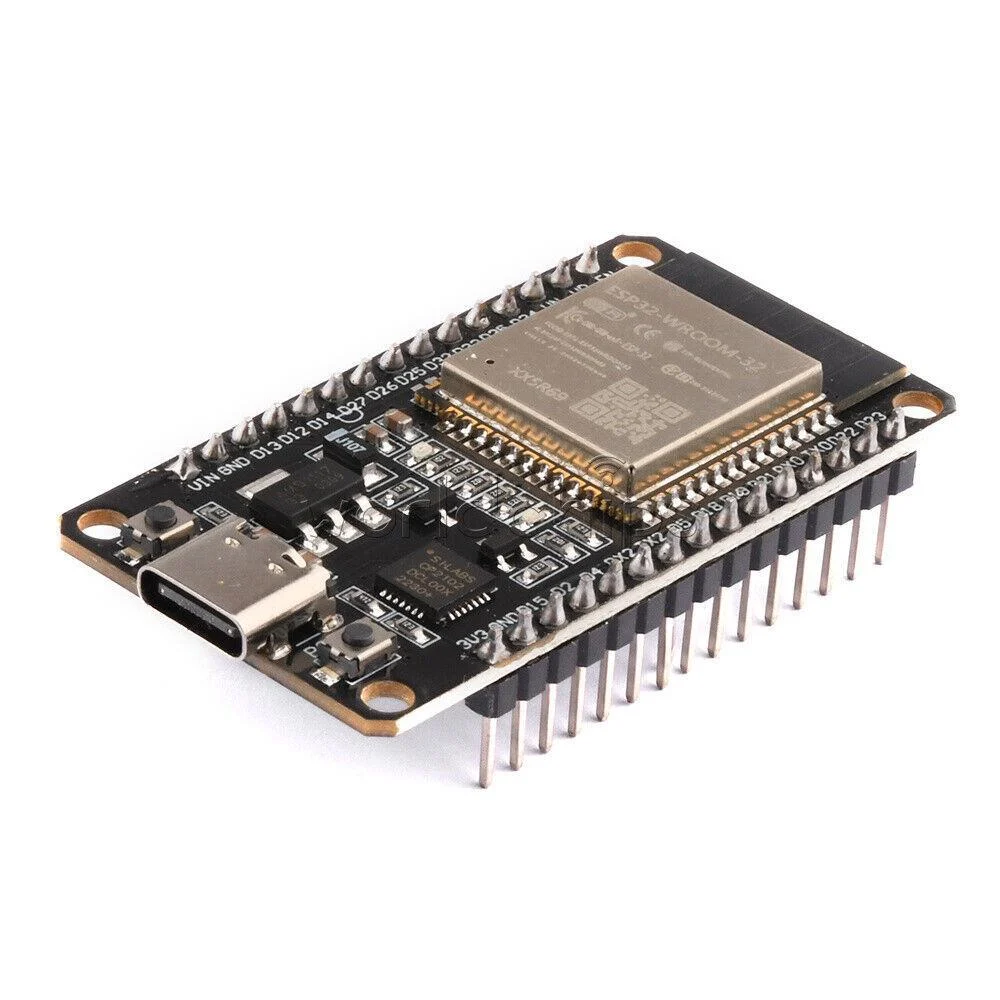
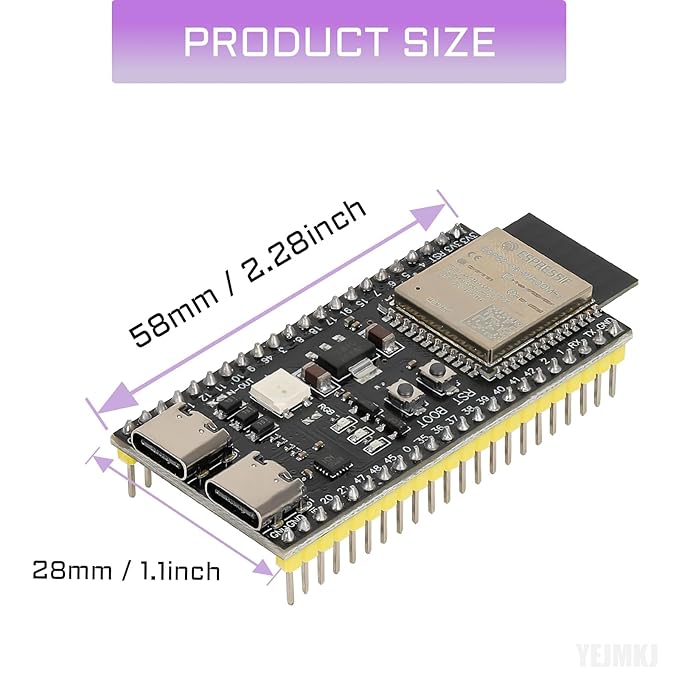
เลือกบอร์ด ESP32 ของคุณChoose your ESP32 board
เฟิร์มแวร์ชุดนี้ใช้เชื่อมต่อ BMS และส่งข้อมูลขึ้น DashboardThis firmware connects to your BMS and publishes data to the Dashboard.
ขั้นที่ 2 · เลือกรุ่นบอร์ดStep 2 · Select board
ใช้สาย USB ที่รับส่งข้อมูลได้Use a USB data cable ห้ามถอดสายหรือปิดหน้านี้ระหว่างติดตั้ง และตรวจสอบชื่อบอร์ดก่อนเริ่มทุกครั้งDo not unplug the board or close this page during installation. Verify the board model first.
เลือกบอร์ดที่ต้องการติดตั้งChoose a board to installเลือกให้ตรงกับบอร์ด ESP32 ที่คุณใช้งานSelect the option that matches your ESP32 board.
ESP32 Firmwareเชื่อมต่อบอร์ด แล้วกดปุ่มติดตั้งConnect the board, then press Install.
กรุณาเปิดด้วย Chrome หรือ Edge บนคอมพิวเตอร์Please use Chrome or Edge on a computer.Web Installer requires HTTPS.กรุณาเปิดด้วย Chrome หรือ Edge บนคอมพิวเตอร์Please use Chrome or Edge on a computer.Web Installer requires HTTPS.กรุณาเปิดด้วย Chrome หรือ Edge บนคอมพิวเตอร์Please use Chrome or Edge on a computer.Web Installer requires HTTPS.
หลังติดตั้ง FirmwareAfter installing the firmwareเลือกตั้งค่าได้ 1 วิธีChoose either setup method
วิธีที่ 1Method 1ตั้งค่าผ่าน BluetoothSet up via Bluetooth
เสียบไฟให้อุปกรณ์ แล้วเปิด DashboardPower on the device and open the Dashboard.
กด “เพิ่มอุปกรณ์” และเลือก “ตั้งค่าผ่าน Bluetooth”Select “Add Device,” then “Set up via Bluetooth.”
เชื่อมต่ออุปกรณ์ชื่อ BMS Monitor xxConnect to the device named BMS Monitor xx.
เลือก Wi‑Fi กรอกรหัสผ่าน แล้วกดทดสอบและเชื่อมต่อChoose Wi-Fi, enter its password, then test and connect.
รอการสแกน แล้วเลือก BMS ที่ต้องการใช้งานWait for the scan, then select the BMS you want to use.
วิธีที่ 2Method 2ตั้งค่าผ่าน CodeSet up with a Code
เสียบไฟ แล้วเชื่อมต่อ Wi‑Fi ชื่อ BMS MonitorPower on the device and join the BMS Monitor Wi-Fi network.
เลือก Wi‑Fi ที่ใช้งาน กรอกรหัสผ่าน และรอให้อุปกรณ์ออนไลน์Choose your Wi-Fi, enter its password, and wait for the device to come online.
ที่ Dashboard กด “เพิ่มอุปกรณ์” แล้วเลือกตั้งค่าผ่าน CodeOn the Dashboard, select “Add Device,” then set up with a Code.
กรอก Claim Code 6 หลัก จากนั้นเลือก BMS ที่ต้องการใช้งานEnter the 6-digit Claim Code, then select the BMS you want to use.
ผู้ใช้ iPhone หรือ iOS ให้ใช้วิธีที่ 2iPhone and iOS users must use Method 2. เนื่องจากเบราว์เซอร์บน iOS ไม่รองรับการตั้งค่าผ่าน Web BluetoothBrowsers on iOS do not support setup through Web Bluetooth.
เชื่อมกับบัญชี BMS Monitor เหมาะสำหรับดูข้อมูลจากอุปกรณ์ที่อยู่คนละจุดผ่านระบบออนไลน์Connects to your BMS Monitor account for viewing devices at another location through the online service.
ใช้ Account ID + LicenseAccount ID + License
จอแบบออนไลน์ทำงานอย่างไรHow the online display works
จอเชื่อม Wi‑Fi แล้วดึงรายการ BMS จากบัญชีของคุณ เหมาะกับการดูหลายอุปกรณ์หรือดูข้อมูลจากระยะไกลThe display connects to Wi-Fi and loads BMS devices from your account, including remote devices.
Wi‑Fi + MQTT Account ID Multiple BMS Remote data
License สำหรับจอออนไลน์Online display license
เปิดใช้งานครั้งเดียวOne-time activation
ใช้สำหรับเชื่อมจอ CYD เข้ากับบัญชี BMS Monitor และดูข้อมูล BMS ผ่านระบบออนไลน์Connect your CYD display to a BMS Monitor account and view BMS data through the online service.
ทำรายการเปิดใช้งานได้จากเมนูบนจอActivate directly from the display menu
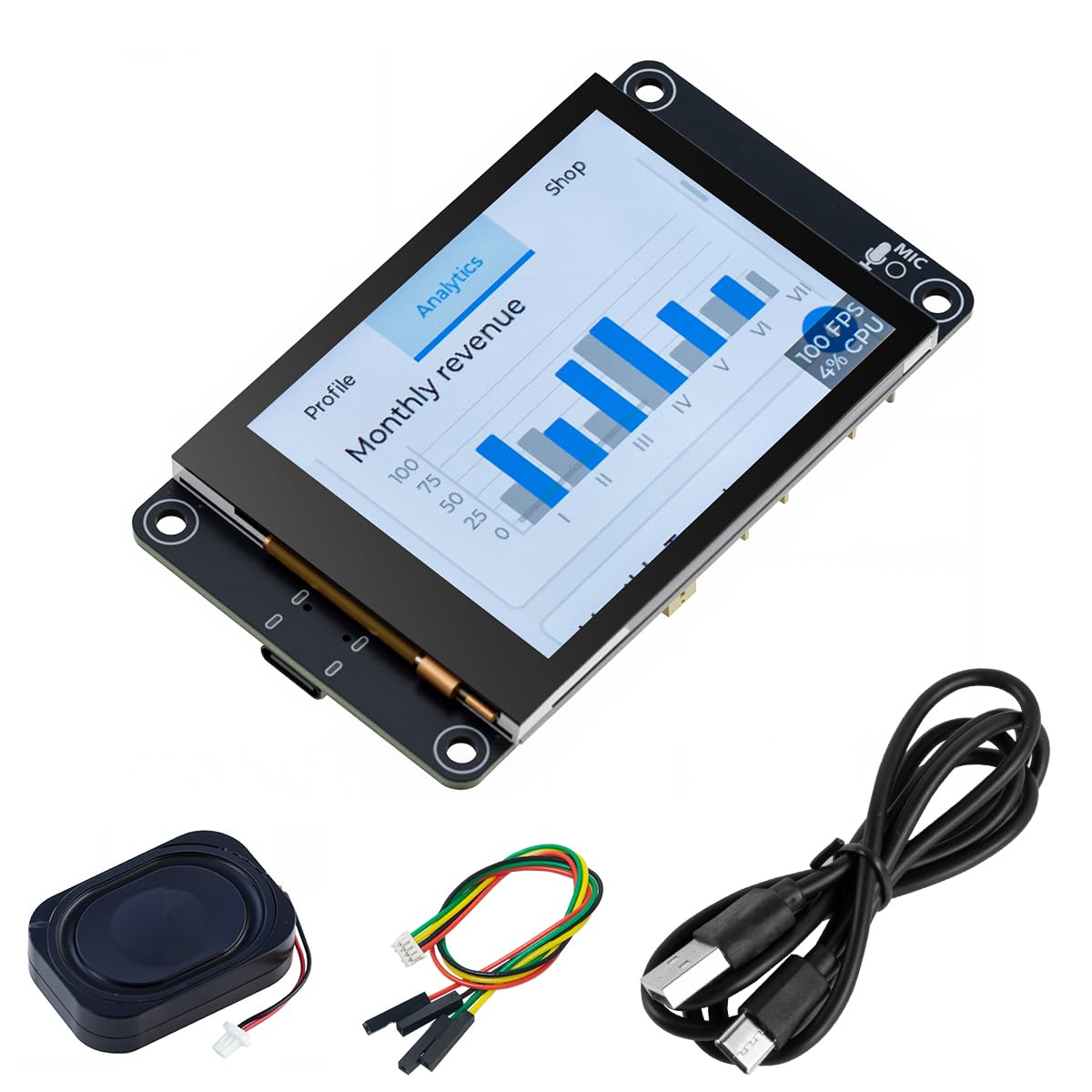
เลือกรุ่นจอที่ต้องการติดตั้งChoose a display to installตรวจสอบรุ่นจอให้ตรงก่อนกดติดตั้ง FirmwareMake sure the display model matches before installing.
ESP32 CYD 2.8″การติดตั้งใหม่จะล้าง Wi‑Fi และข้อมูลการผูกเดิมบนจอA fresh installation erases Wi-Fi and the existing display link.
กรุณาเปิดด้วย Chrome หรือ Edge บนคอมพิวเตอร์Please use Chrome or Edge on a computer.Web Installer requires HTTPS.กรุณาเปิดด้วย Chrome หรือ Edge บนคอมพิวเตอร์Please use Chrome or Edge on a computer.Web Installer requires HTTPS.
หลังติดตั้ง Firmware จอAfter installing display firmwareตั้งค่าจอออนไลน์ให้พร้อมใช้งานSet up the online display
1เลือก Wi‑Fi ให้จอConnect the display to Wi-Fi
เชื่อมจอกับเครือข่ายที่ใช้งานอินเทอร์เน็ตได้Connect the display to a network with internet access.
2กรอก Account IDEnter Account ID
เปิดหน้า Dashboard แล้วนำ Account ID ของบัญชีมากรอกบนจอCopy the Account ID from your Dashboard and enter it on the display.
3เปิดใช้งาน LicenseActivate the license
ทำรายการและยืนยัน License ได้จากเมนูบนจอPurchase and activate the license from the display menu.
4เลือก BMS ที่จะแสดงChoose a BMS to display
เมื่อเปิดใช้งานสำเร็จ เลือกอุปกรณ์ในบัญชีแล้วเริ่มดูข้อมูลได้ทันทีAfter activation, select a device from your account and start monitoring.
LOCAL DISPLAY
จอ ESP32 2.8″ LocalESP32 2.8″ Local Display
รองรับทั้ง ESP32 CYD และ ESP32‑S3 IPS เชื่อมต่อ BMS ผ่าน Bluetooth โดยตรงโดยไม่ต้องพึ่ง Server ในการทำงานตามปกติSupports ESP32 CYD and ESP32-S3 IPS displays with a direct Bluetooth connection to the BMS and no server dependency during normal operation.
พร้อมติดตั้ง — BetaReady to install — Beta
จอ Local ทำงานอย่างไรHow Local Display works
จอเชื่อมต่อ BMS ผ่าน BLE โดยตรง ไม่ต้องใช้ Wi‑Fi, MQTT หรือ Server ระหว่างใช้งานตามปกติThe display connects directly to the BMS over BLE without Wi-Fi, MQTT, or a server during normal use.
BLE Direct Auto Reconnect Dashboard + Cells JK / JBD / ANT / Daly
Local LicenseLocal License
Beta
ราคาต่อจอPrice per display400 บาท≈ US$12 400 THB / display
ทดลองอ่านข้อมูลได้ 30 นาที สิทธิ์ผูกกับ chip_id และแยกจาก Online LicenseIncludes a 30-minute read-only trial. The license is tied to the chip_id and sold separately from the Online License.
เลือกรุ่นจอ Local ที่ต้องการติดตั้งChoose a Local display to installต้องเลือกให้ตรงกับชิปและรุ่นจอ ห้ามติดตั้ง Firmware ข้ามรุ่นChoose the exact chip and display model. Do not cross-flash.
ESP32 CYD 2.8″ Localการติดตั้งใหม่จะล้าง Wi‑Fi และการตั้งค่าเดิมบางส่วนบนจอA fresh installation erases Wi-Fi and some existing display settings.
กรุณาเปิดด้วย Chrome หรือ Edge บนคอมพิวเตอร์Please use Chrome or Edge on a computer.Web Installer requires HTTPS.กรุณาเปิดด้วย Chrome หรือ Edge บนคอมพิวเตอร์Please use Chrome or Edge on a computer.Web Installer requires HTTPS.
หลังติดตั้ง Firmware LocalAfter installing Local Firmwareตั้งค่าจอให้พร้อมใช้งานSet up the display
1ถอด–เสียบสายใหม่Reconnect power
รอให้จอเริ่มทำงานแล้วเลือกภาษาWait for startup and choose a language.
2เชื่อมต่อ Wi‑FiConnect Wi-Fi
ยืนยัน License หรือเริ่มทดลอง 30 นาทีVerify a license or start the 30-minute trial.
3เลือก BMSSelect a BMS
เลือก BMS ที่ต้องการเชื่อมต่อบนหน้าจอChoose the BMS to connect on screen.
4เริ่มใช้งานแบบ LocalStart Local Mode
ดูข้อมูลผ่าน BLE ได้โดยไม่ต้องต่ออินเทอร์เน็ตView data over BLE without internet.
OPTIONAL HARDWARE
ยังไม่มีอุปกรณ์?Need hardware?
แยกจากขั้นตอนติดตั้ง เพื่อให้หน้าหลักอ่านง่ายขึ้นSeparated from installation to keep the main flow clear.